
Excluded by noindex tag : When you submit your website to Google Search Console (GSC), you may come across different indexing issues. One of the most common ones is the message:
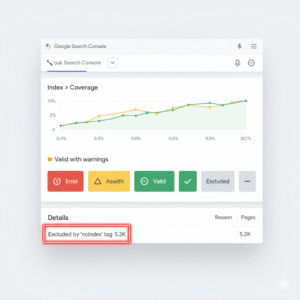
“Excluded by noindex tag”
If you’re a website owner, this might look alarming at first. But don’t worry — it doesn’t always mean something is broken. In fact, in many cases, it’s intentional. In this blog post, I’ll explain:
- What the “excluded by noindex tag” message means
- Why it happens
- When it’s normal vs. when it’s a problem
- How to fix it step by step
- Best practices for WordPress and SEO plugins
- By the end, you’ll have a clear understanding of whether you need to take action — or simply let Google do its job.
What Does “Excluded by ‘noindex’ Tag” Mean?
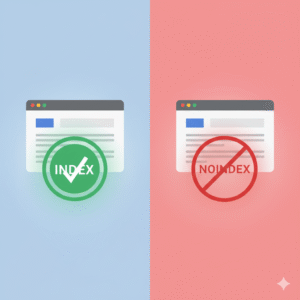
When Google crawls your site, it looks at the HTML code of each page. If it finds a noindex meta tag in the <head> section, it understands that the page should not be included in Google’s search index.
For example:
<meta name=”robots” content=”noindex”>
This tells Google: “Crawl me if you want, but don’t show me in search results.”
So, when you see Excluded by noindex tag in Google Search Console, it simply means:
- Google visited the page.
- It found a noindex instruction.
- It respected that instruction and excluded the page from search results.
Why Does This Happen?
There are several reasons why some of your pages may carry the noindex tag:
1. WordPress Default Settings
If you’re using WordPress, many non-essential pages automatically get marked as noindex. Examples include:
- Tag archives (/tag/…/)
- Category feeds (/feed/)
- Author archives
- Search results pages
These pages often contain duplicate or thin content, so WordPress or your SEO plugin prevents them from appearing in Google.
2. SEO Plugins (Yoast, RankMath, All in One SEO)
Most SEO plugins give you the option to decide which sections of your site should be indexed. By default, they set:
- Posts and pages = index
- Tags, categories, feeds = noindex
This is actually good SEO practice to avoid duplicate content.
3. Developer Settings
Sometimes developers add noindex to staging sites, login pages, or under-construction pages so they don’t appear in Google.
4. Accidental Settings
In some cases, webmasters unintentionally leave the noindex tag on important pages like service pages, product pages, or even the homepage. This can be a serious issue.
Is “Excluded by Noindex tag” a Problem?
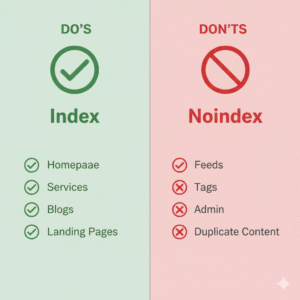
Not always. The real question is: Which pages are excluded?
- Normal and Safe to Exclude:
- /feed/ URLs
- /tag/ URLs
- Author archives
- Internal search result pages
- Staging/test pages
- Problematic if Excluded:
- Homepage
- Service or product pages
- Blog posts
- Portfolio or case studies
- Landing pages
So, don’t panic if you see dozens of feed or tag URLs excluded. That’s expected. But if your core content pages are missing, you need to fix it.
How to Fix “Excluded by Noindex tag”
Here’s a step-by-step process:
Step 1: Identify the Affected Pages
In GSC, click on the Details section. It will show you examples of URLs excluded.
- If they are /feed/ or /tag/ URLs → safe to ignore.
- If they are real content pages → move to the next step.
Step 2: Check the Page’s HTML
Open the affected URL in your browser. Right-click → View Source → Search for noindex.
If you find:
<meta name=”robots” content=”noindex, follow”>
Then the page is intentionally excluded.
Step 3: Check SEO Plugin Settings
- For Yoast SEO: Go to Search Appearance → Taxonomies/Archives.
- For RankMath: Go to Titles & Meta → Tags/Archives.
- Enable or disable indexing depending on your choice.
Step 4: Remove ‘Noindex’ for Important Pages
If a service page or post is mistakenly excluded:
- Edit the page.
- Scroll to the SEO plugin settings.
- Change Meta Robots from “Noindex” to “Index”.
- Update the page.
Step 5: Resubmit to Google
After fixing, go to GSC → URL Inspection Tool → Request Indexing.
Best Practices for Handling Noindex Pages
- Keep feeds and tag pages noindexed. They don’t add SEO value.
- Ensure all money pages are indexed. Homepage, services, blogs, etc. should be crawlable and indexable.
- Submit a clean sitemap. Include only index-worthy pages in your XML sitemap.
- Check regularly. Every few weeks, review GSC Coverage reports to ensure nothing important is excluded.
- Avoid thin content. If a page has little value, either improve it or keep it noindexed.
Real Example: Ravi Digital Services
Recently, while reviewing Ravi Digital Services (ravidigital.in) in Google Search Console, we noticed 26 pages excluded by the noindex tag.
Most of them were tag feed URLs such as:
- https://ravidigital.in/tag/localseo/feed/
- https://ravidigital.in/tag/onpageseo/feed/
- https://ravidigital.in/tag/google-ads-best-practices/feed/
This is completely normal, because RSS feeds don’t need to be indexed. The important part is ensuring that service pages (like SEO services, website development, PPC ads) and blogs are indexed correctly.
Key Takeaways
- “Excluded by noindex” is not an error, it’s just a status report.
- It’s normal for feeds, tags, and archives.
- It’s a problem if important pages are excluded.
- Fix it by adjusting your SEO plugin settings and resubmitting the page to Google.
- Regular monitoring in GSC ensures your site stays healthy in search results.
Final Thoughts
The “Excluded by ‘noindex’ tag” message in Google Search Console is one of the most misunderstood alerts. Instead of panicking, use it as a chance to review your site’s indexing strategy.
Remember: Not every page should be indexed. By controlling what Google shows, you’re actually improving your SEO and preventing duplicate content issues.
Focus on indexing the pages that truly matter to your business — your services, blogs, and landing pages — and let Google ignore the rest.
That’s how you build a clean, SEO-friendly website that ranks well in 2025 and beyond.
Written by: Ravi Digital Services – Helping businesses grow online with smart SEO, PPC, and digital marketing strategies.
Frequently Asked Questions (FAQs)
1. What is a noindex tag in SEO?
A noindex tag is used for telling search engines to not index or not to display on the search results
<meta name=”robots” content=”noindex”>
This is useful for pages that don’t provide unique value, such as feed pages, admin pages, or duplicate content.
- Why does Google Search Console show “Excluded by noindex tag”?
Google Search Console shows this when it crawls your site, finds a noindex instruction, and decides not to index that page. It’s not always an error — often it’s intentional, especially for WordPress sites where tags, feeds, and archives are set to noindex by default.
- Should I worry if my pages are excluded by noindex?
It depends. If only your tag, category, or feed pages are excluded, that’s completely normal and you don’t need to worry. But if your homepage, service pages, or blog posts are excluded, that’s a serious problem because those are the pages that should appear in Google search results.
- How do I remove noindex from a WordPress page?
To remove noindex from a WordPress page:
- Edit the page in your dashboard.
- Scroll down to the SEO plugin settings (Yoast, RankMath, or All in One SEO).
- Look for Meta Robots Index.
- Change it from Noindex to Index.
- Update the page and resubmit it in Google Search Console.
- Is it okay to keep tag and feed pages noindexed?
Yes, it’s actually recommended. Tag and feed pages usually don’t provide unique value to search engines. Keeping them noindexed prevents duplicate content issues and helps Google focus on your important content — like blog posts, services, and landing pages.
- How long does it take Google to update indexing after fixing noindex?
After you remove the noindex tag and request indexing in Google Search Console, it can take anywhere from a few hours to a few days for Google to recrawl and update its index. Patience is key, but requesting indexing often speeds up the process.